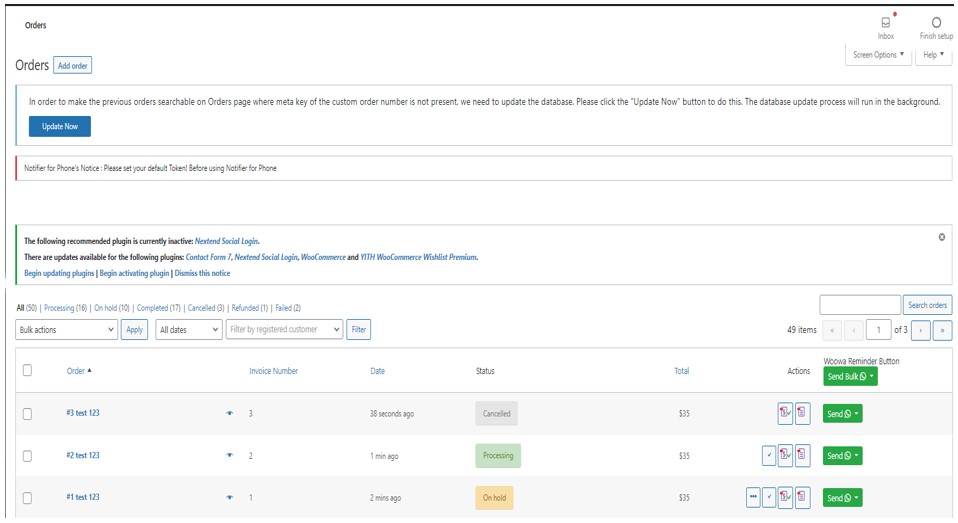
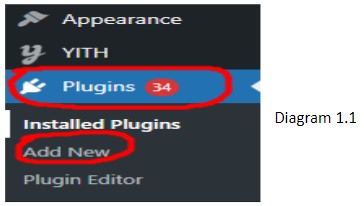
 1) In Diagram 1, find Plugin and press Add new.
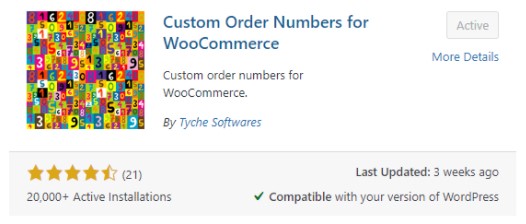 2) Search for custom order number plugin and install it.
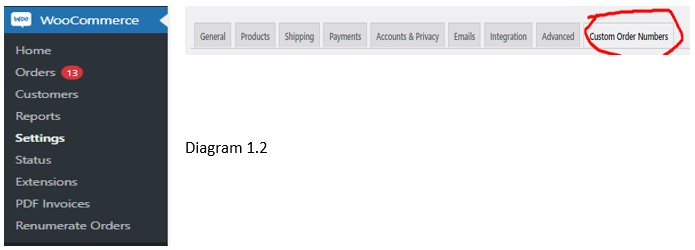
3) In diagram 1.2, go to Woocommerce and click Settings. Inside settings, u can find the settings for custom order numbers and click on it.
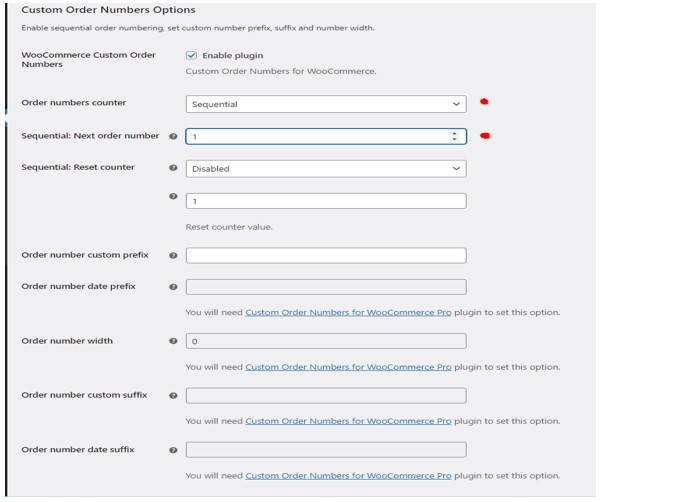
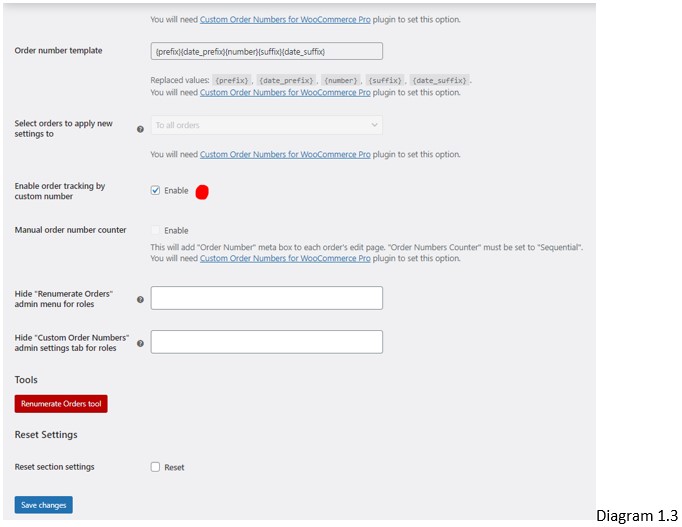
4) In diagram 1.3, inside the setting, set “Sequential” for order numbers counter option and set “1” at sequential: Next order number option. Also, tick the box for Enable order tracking by custom number and remember to press Save Changes. :3
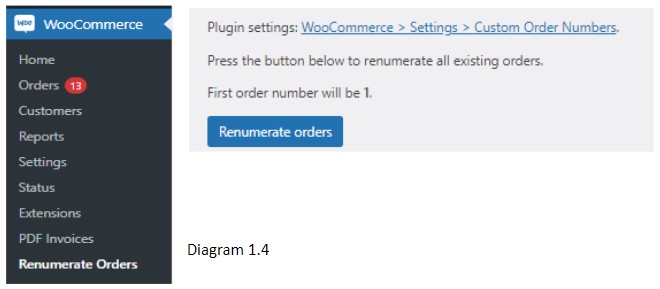 5) In diagram 1.4, u can find another setting for custom order number inside Woocommerce section. This setting can renumerate the order numbers. Ex. Last order number is 8, upon pressing this button will numerate the next order number to random number instead of 9.
2) Now, it’s time to configure PDF invoices Setting :3
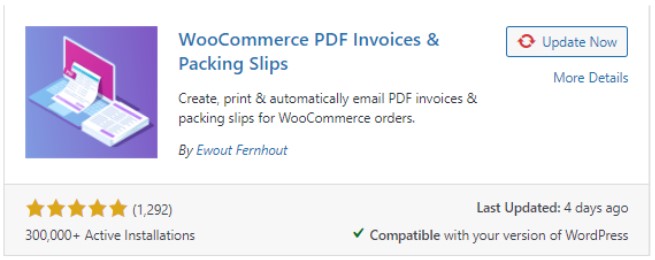 2.1) Follow the step in 1.1 and find Woocommerce PDF Invoices & Packing Slip and install it.
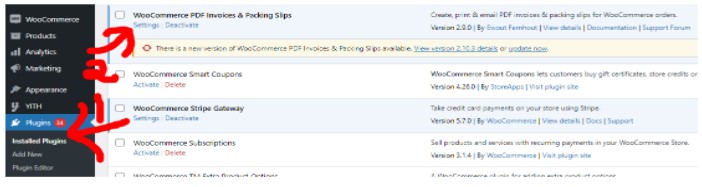 2.2) Go to installed plugins and find Woocommerce PDF Invoices & Packing Slips and press settings.
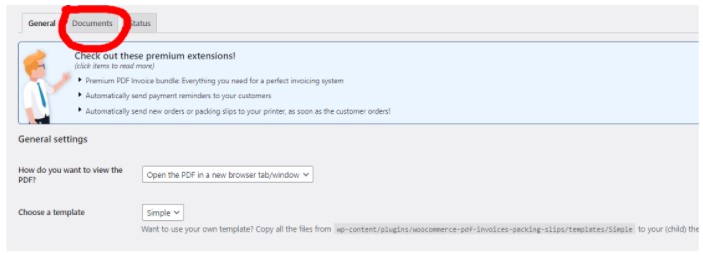 2.3) Go to Documents
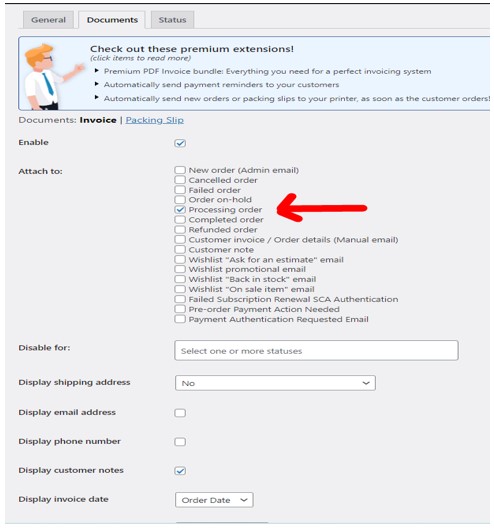
2.4) Tick the processing order.
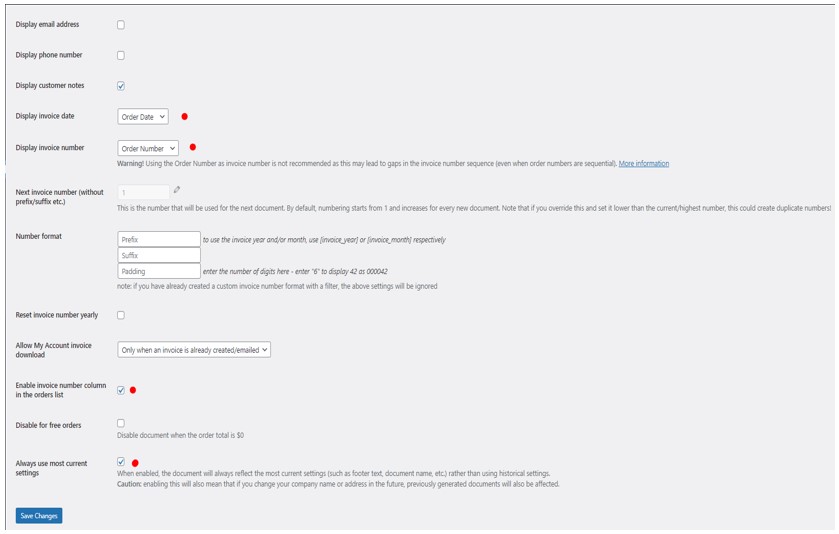 2.5) Set the Display invoice date to Order date and Display invoice number to Order Number. Then, tick the “Enable invoice number column in the order list” and “Always use most current settings”. Remember to press Save Changes :3